How to set up email address on iPhone?
Print- Email, Iphone, apple mail
- 2
After creating your email address, you will need the login credentials sheet to set up the email on your iPhone.
Step-by-Step Guide: Setting Up Email on iPhone
- Open Settings and navigate to Mail > Accounts.
- Tap on Add Account.
- Select Other.
- Choose Add Mail Account.
- Enter your name, email address, password, and a description for the account, then tap Next.
- For both the incoming and outgoing mail servers, enter the server details provided in the credentials sheet:
Username: For Plesk, enter your email address. For Confixx, enter your username (which starts with "web") and the associated password. - Tap Next and wait for the settings to be verified. This step may take a few minutes.
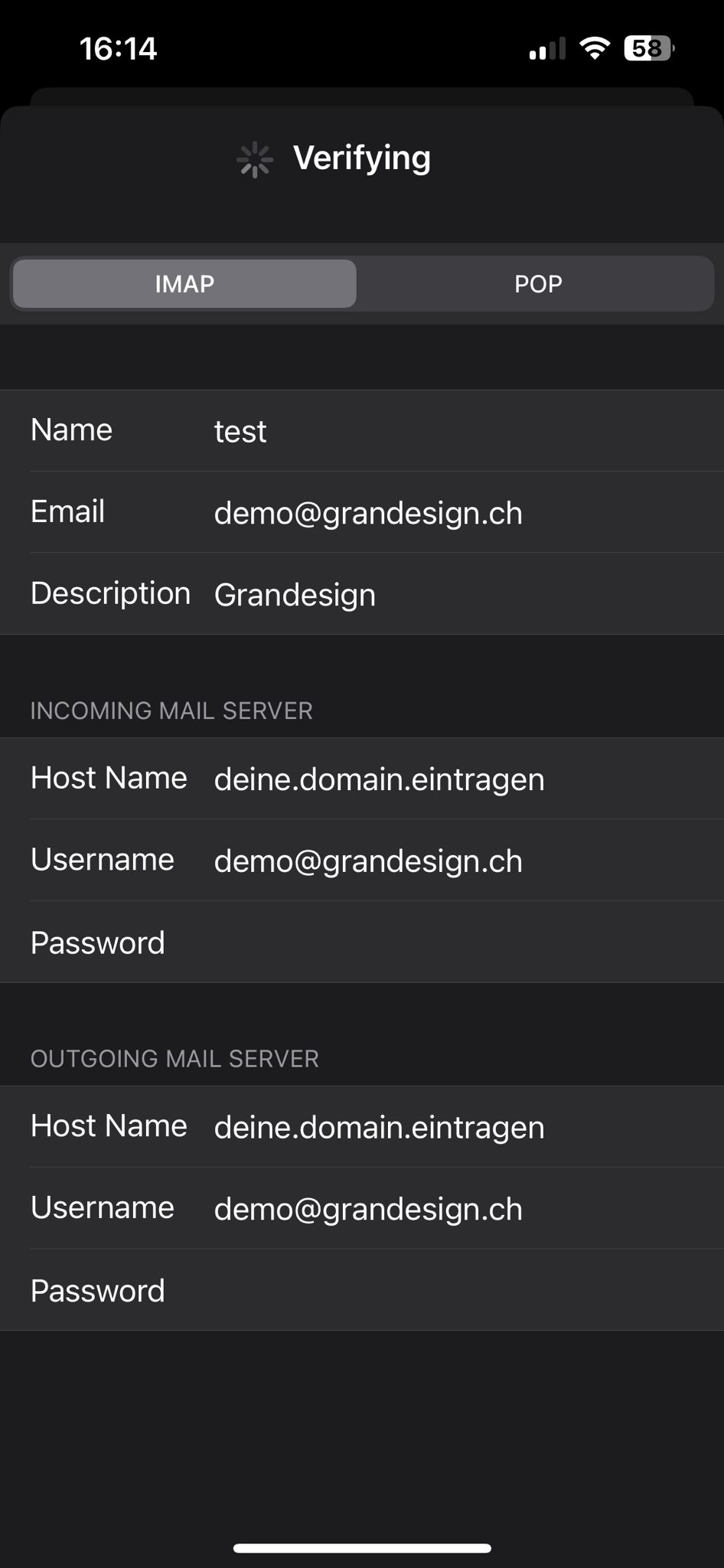
Additional Settings:
- Select your email account and tap on SMTP. Change the server port to 465 and save the settings.
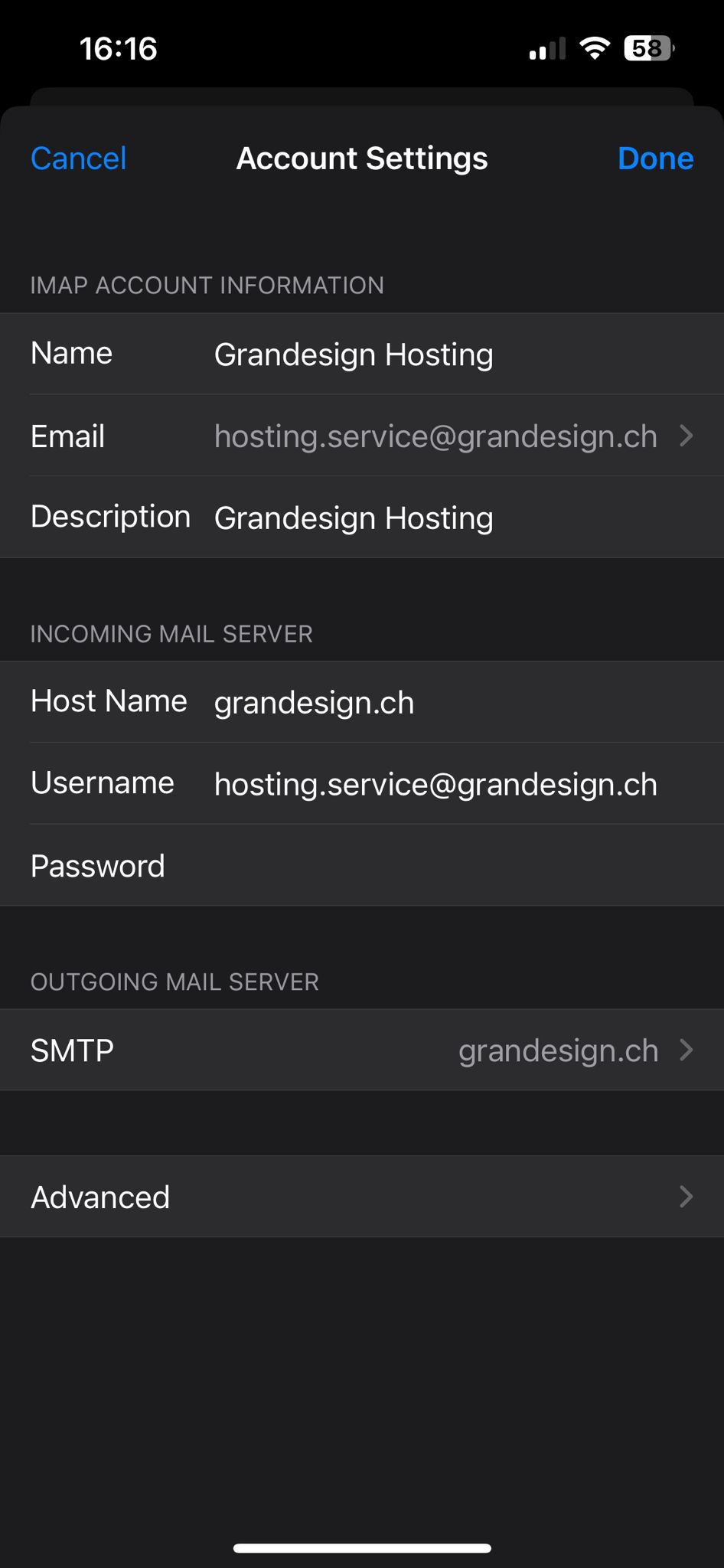
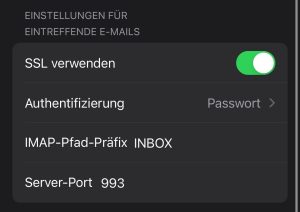
- Go to Account Settings > Advanced and set IMAP Path Prefix to INBOX.
Your email setup on iPhone is now complete. Congratulations!

